Working with Groups / Customer Segment
With groups and customer segments, you can structure customers for specific purposes, such as access to sales channels, personal pricing, discounts, and communication.
If you want customers to log in to multiple B2C webshops, such as a Dutch and a Belgian webshop, it is essential that sales channels, contacts, and organizations share the same group. By using, for example, the group 'B2C', customers with an account within this group can directly log in to all linked sales channels (such as NL and BE).
Do you want to distinguish between B2C and B2B webshops, for example because registration is open for B2C but requires approval for B2B? Then use separate groups, such as 'B2C' and 'B2B'. In that case, you must create a separate contact and organization for B2B.
In this documentation, we explain step by step how to link groups to sales channels, contacts, and organizations, so that customers can log in to the correct webshops without any issues.
Requirements
- You have access to Customer Management and Sales Channels.
- Basic knowledge of customer data and webshop structure is helpful.
Creating Groups
Within Afosto, you can create groups in two ways.
Option 1
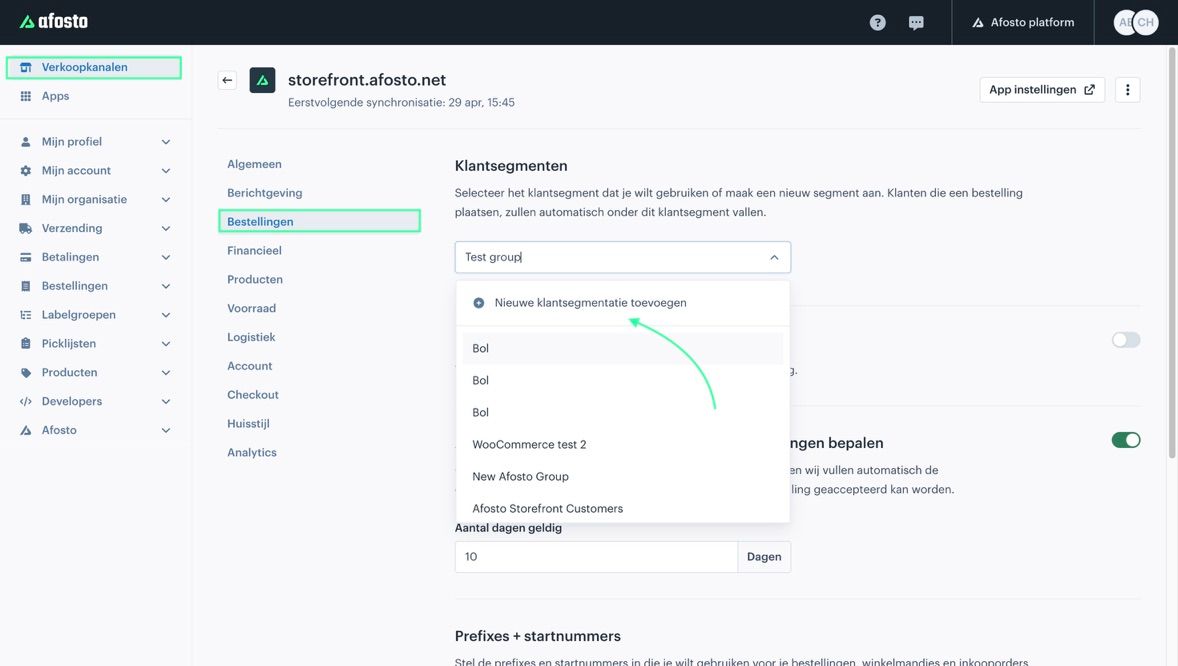
Log in to your Afosto dashboard via afosto.app and navigate to the management interface. Select the sales channel to which you want to link your group. Then navigate to “Orders” > Customer Segments. In the drop-down menu, you can add a new customer segment.

Option 2
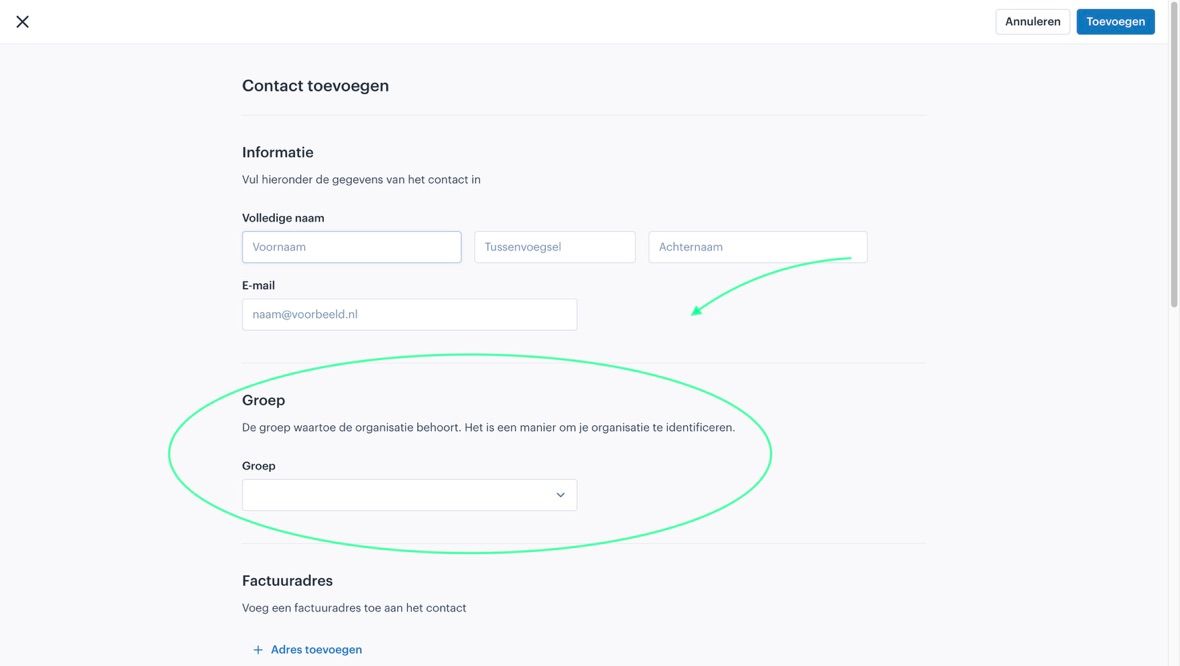
While creating a contact or organization.

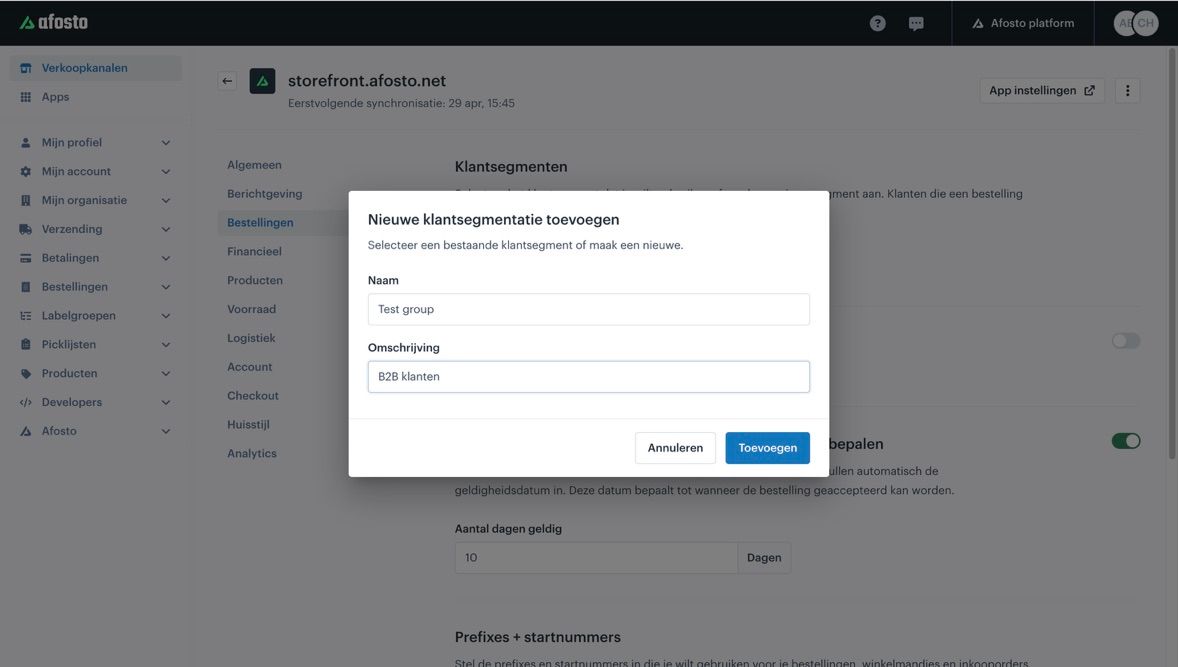
Give the group a clear name, for example "B2C" or "B2B", so that everything remains well organized.

Linking Groups and Sales Channels
To ensure that customers can log in to the correct webshops:
- Make sure the sales channel, the customer contact, and the organization all share the same group.
- For B2C environments: use, for example, the group "B2C" linked to all B2C sales channels (such as DE, NL, EN, FR).
- For B2B environments: use a separate group "B2B", linked to your business sales channel.
Important Rules:
- A customer account in the B2C group can log in to all sales channels with the B2C group.
- For B2B, a separate account is required; the customer must first request an account. This is linked to a separate organization and B2B group.
Frequently Asked Questions (FAQ)
What happens if a customer does not have the correct group?
The customer cannot log in to the linked sales channel.
Can I change a customer segment/group for a customer?
Yes, this can be done by going to Afosto.app → Customers → Contacts → select the specific contact to modify.
Then, click the pencil icon to change the customer segment.


Can customers belong to multiple groups at the same time?
No, this is not possible, but login access depends on matching groups between the customer, organization, and sales channel.
How do I change the name of a group/customer segment for a sales channel?
You can change this by going to Management Interface → Customers → Customer Segment.
Can I automatically assign existing customers to groups?
No, you need to create a new contact and assign it to the correct group.
- Requirements
- Creating Groups
- Linking Groups and Sales Channels
- Frequently Asked Questions (FAQ)
- What happens if a customer does not have the correct group?
- Can I change a customer segment/group for a customer?
- Can customers belong to multiple groups at the same time?
- How do I change the name of a group/customer segment for a sales channel?
- Can I automatically assign existing customers to groups?